
Sword of the Sea Performance: PC Settings and Fixes
Improve Sword of the Sea performance with PC graphics settings, DLSS tips, Steam Deck updates, and a clear look at what Patch 1.6 changes for your setup.
Jump to
Start With Patch 1.6
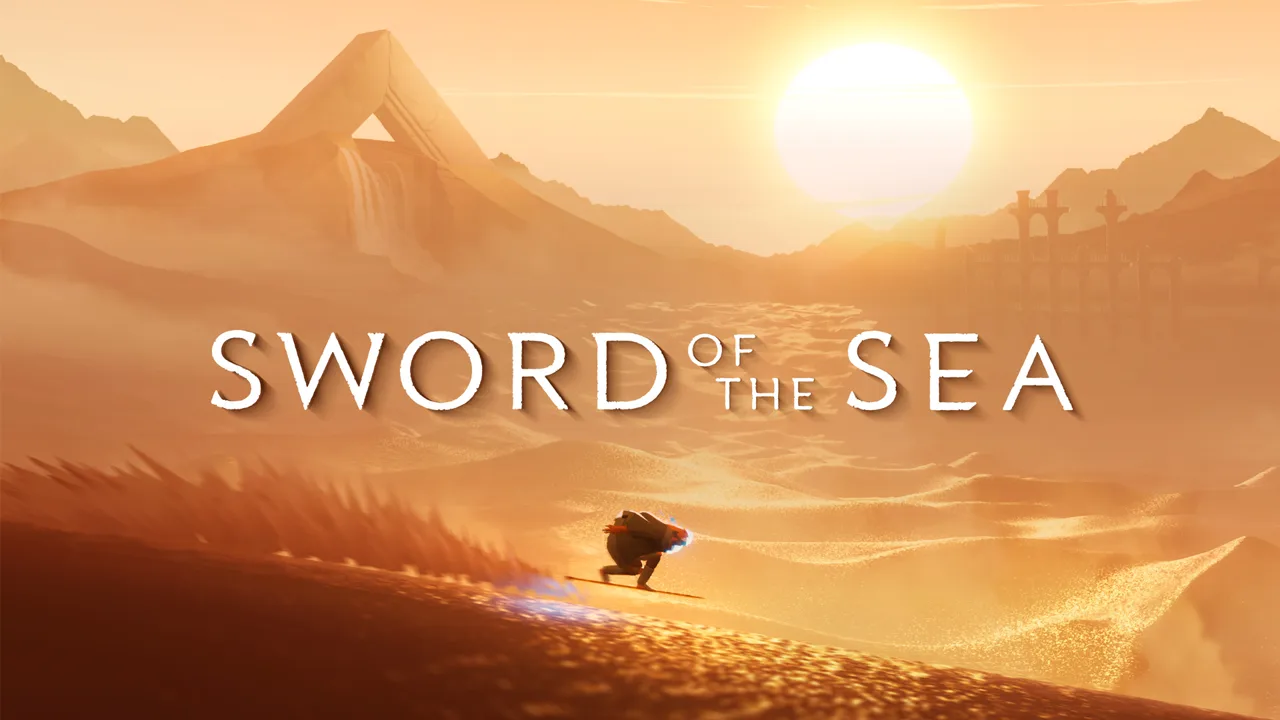
Fast Hoversword movement makes frame rate drops hard to ignore. Sword of the Sea performance tuning now includes DLSS and expanded graphics presets, thanks to Patch 1.6. Update the game before adjusting settings so you can use those additions.
Released October 29, 2026, this update changes several things that matter when balancing image quality against responsiveness:
| Patch 1.6 change | What it means for your setup |
|---|---|
| Added DLSS support | Compatible NVIDIA hardware gets another upscaling option. |
| Performance improvements and optimizations | The update addresses performance beyond individual settings changes. |
| Additional graphics settings presets | There are more preset choices to use as a starting point. |
| Expanded the impact of graphics settings | Revisit settings you tried on an older build. |
| Steam Deck Verified status | The Steam version now carries Verified status for Valve’s handheld. |
Launch-era complaints about missing upscaling options and unsupported Steam Deck compatibility predate these changes. They describe an older build.
Official page: Sword of the Sea (swordoftheseagame.com)
PC Graphics Settings That Matter
Resolution scaling and the frame rate limit are useful places to start. Adjust them separately, then repeat the same stretch of surfing to compare camera movement, responsiveness, and image clarity.
| Setting | Available options | How to use it |
|---|---|---|
| Frame rate limit | 30 / 60 / 120 / Unlocked | Compare caps your hardware can sustain during traversal. |
| Resolution scaling | 50–200%, in 5% steps | Lower the scale to test whether rendering resolution is limiting performance. |
| Supersampling | Resolution scaling above 100% | Keep the scale at or below 100% while troubleshooting low FPS. |
| DLSS | Added in Patch 1.6 | Compare it with the existing resolution-scaling option on compatible hardware. |
| V-sync | Available | Compare enabled and disabled behavior if screen tearing is distracting. |
Avoid accidental supersampling
Resolution scaling above 100% renders above the selected output resolution. That can improve image quality, but it also increases rendering work.
Bring the scale back to 100% before diagnosing slowdowns. Then lower it in the available increments and compare the same scene. Watch distant scenery and moving edges alongside the FPS counter; a higher frame rate comes with a visual tradeoff when you reduce internal resolution.
Separate refresh rate from frame rate
The August 29, 2025 update added a 120 Hz frame rate option. Selecting it allows a higher target; it does not make the game maintain 120 FPS.
Compare the 30, 60, and 120 FPS settings through actual traversal rather than a stationary view. Keep the cap that delivers the consistency you prefer while carving dunes and turning the camera.
Check resolution selection on multiple monitors
The September 19, 2025 update expanded access to resolutions and improved handling of multiple-monitor configurations. If you previously struggled to select your display’s resolution, revisit the graphics menu after updating.
The PC version supports 4K output and 21:9 ultrawide gameplay and cutscenes. Ultrawide uses a wider horizontal view, while a separate FOV slider is unavailable.
PC Requirements: Compare More Than Your GPU
The Windows version requires DirectX 12 and a 64-bit processor and operating system. Minimum CPU requirements also include AVX2 support.
| Component | Minimum | Recommended |
|---|---|---|
| Operating system | Windows 10 | Windows 11 |
| Processor | Intel Core i5-9400 or AMD Ryzen 5 2600 | Intel Core i5-12600K or AMD Ryzen 7 5700X |
| Memory | 12 GB RAM | 16 GB RAM |
| NVIDIA graphics | NVIDIA GeForce GTX 1070, 8GB | NVIDIA GeForce RTX 2080 Ti, 11GB |
| AMD graphics | AMD Radeon RX 5600, 6GB | AMD Radeon VII, 16GB |
| Intel graphics | Intel Arc B570 | Intel Arc B580 |
| Available storage | 15 GB | 15 GB |
Compare your CPU and memory with these requirements alongside your graphics card. A powerful GPU alone does not guarantee consistent frame delivery.
Troubleshooting Drops and Stutter
Start by separating a sustained low frame rate from brief interruptions. A consistently slow scene gives you a repeatable place to compare settings; an occasional hitch needs a different comparison than an average FPS reading.
Follow this order:
- Install Patch 1.6 or a later build. Its optimizations and expanded graphics settings make older configurations worth revisiting.
- Remove supersampling. Bring resolution scaling down to 100% or below.
- Repeat the same route at a lower scale. Compare both frame rate and the interruptions you actually feel.
- Try another graphics preset. Patch 1.6 expanded their selection and impact.
- Compare frame rate caps. Judge consistency while moving and rotating the camera.
If lowering resolution barely changes a troublesome section, stop sacrificing image clarity through resolution scaling alone. Compare the graphics presets and review your CPU against the requirements.
Intel Arc owners should also distinguish startup crashes from low FPS. Startup crashes affecting some Arc GPUs were listed among the known issues in the September 19, 2025 update. That is a historical issue affecting some configurations, rather than a frame rate setting to tune.
Steam Deck and Switch 2 Handheld Play
Steam Deck gained Verified status with Patch 1.6. Early impressions from August 2025 belong to the period before that compatibility update and its accompanying optimizations.
Install the updated build before choosing graphics settings on Deck. Compare the available frame rate caps and resolution scaling during surfing, where uneven delivery is easier to notice than in photo mode.
Switch 2 handheld play has sharp image quality and occasional jitters during camera pans. Its settings menu has no graphics options, so the PC tuning steps above do not apply to that version. Photo mode remains available, including autofocus and manual focus controls for composing shots.
Continue with
 Sword of the Sea Requirements: PC Specs and SettingsSword of the Sea requirements explained: compare minimum and recommended PC specs, check AVX2 support, and see how Patch 1.6 changes graphics settings.
More in Settings
Sword of the Sea Controller or Keyboard? Input Guide
Sword of the Sea controller or keyboard? Compare input options, movement remapping, and DualSense haptics, plus the Steam Input setting to change on PC.
Sword of the Sea DLSS Mod: Use Native Support in 1.6
Searching for a Sword of the Sea dlss mod? Patch 1.6 adds native DLSS. Learn what changed, how Ultra+ differs, and which older fixes to reconsider now.
Sword of the Sea Keeps Crashing? Fixes to Try on PC
Sword of the Sea keeps crashing? Try PC troubleshooting, check Intel Arc startup errors, and work through console fixes without deleting your save data.
Sword of the Sea Settings Guide: Smoother PC Surfing
Use this Sword of the Sea settings guide to tune graphics, improve frame pacing, set up DualSense haptics, and adjust audio after the Patch 1.6 update.
Join the community
Official channels for news, updates and player help: