
Sword of the Sea Settings Guide: Smoother PC Surfing
Use this Sword of the Sea settings guide to tune graphics, improve frame pacing, set up DualSense haptics, and adjust audio after the Patch 1.6 update.
Jump to
Start With the Patch 1.6 Graphics Changes
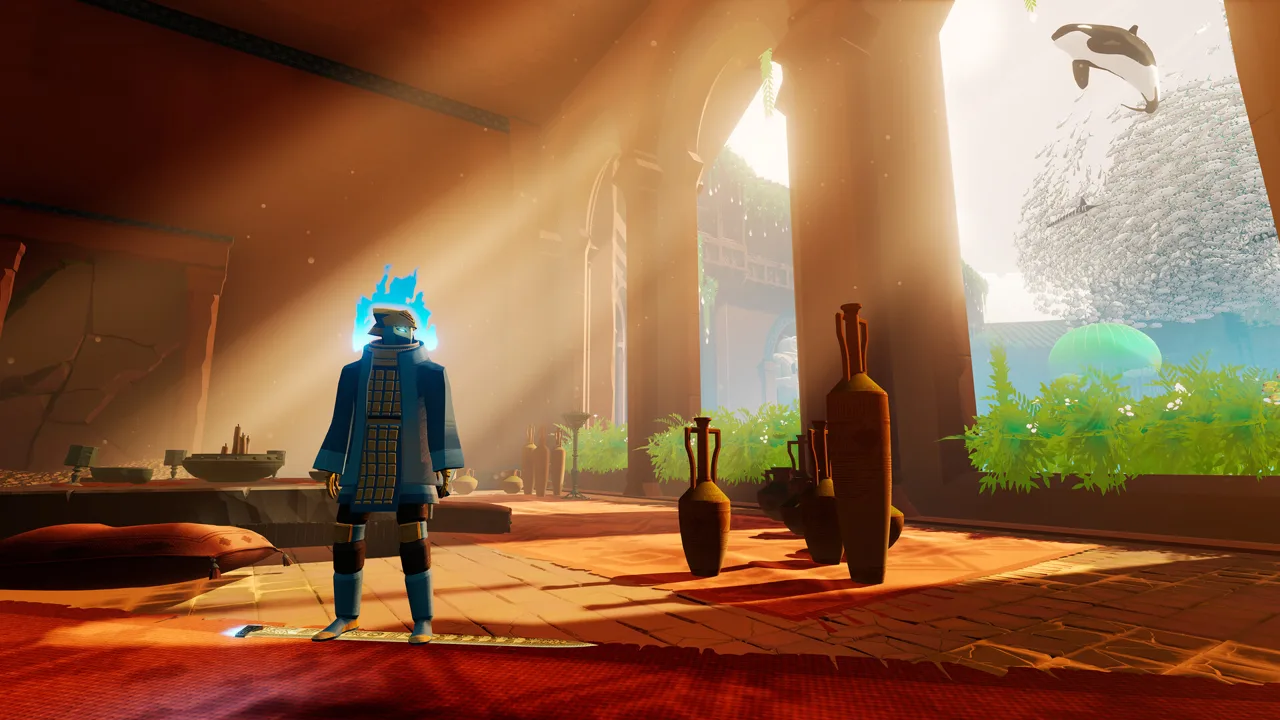
Smooth Hoversword movement makes every turn, jump, and landing easier to follow. This Sword of the Sea settings guide covers graphics, frame rate, controls, and audio so you can keep the scenery sharp while making movement feel responsive. Start by updating the game: Patch 1.6 added DLSS support, expanded the impact of graphics settings, and introduced performance improvements.
The October 29, 2026 update brought several changes that matter when tuning the PC version:
- DLSS support was added.
- Additional graphics presets expanded the available starting points.
- Graphics settings gained a greater impact, alongside performance improvements and optimizations.
- Steam Deck Verified status and haptics improvements arrived in the same update.
Earlier builds offered little performance improvement when lowering waves, fish, fog, shadows, and materials together. Patch 1.6 specifically expanded the impact of graphics settings. Adjust those options on the current build instead of assuming Ultra carries almost no performance cost.
Choose a graphics preset, then repeat the same stretch of surfing while changing individual options. Include moving water and marine life in your route so the comparison reflects more than an empty patch of sand.
Official page: Sword of the Sea (swordoftheseagame.com)
Adjust Resolution Scaling and DLSS
Keep display resolution and internal resolution scaling separate when tuning image quality. Display resolution controls the output dimensions; resolution scaling changes how much rendering work happens before the image reaches your screen.
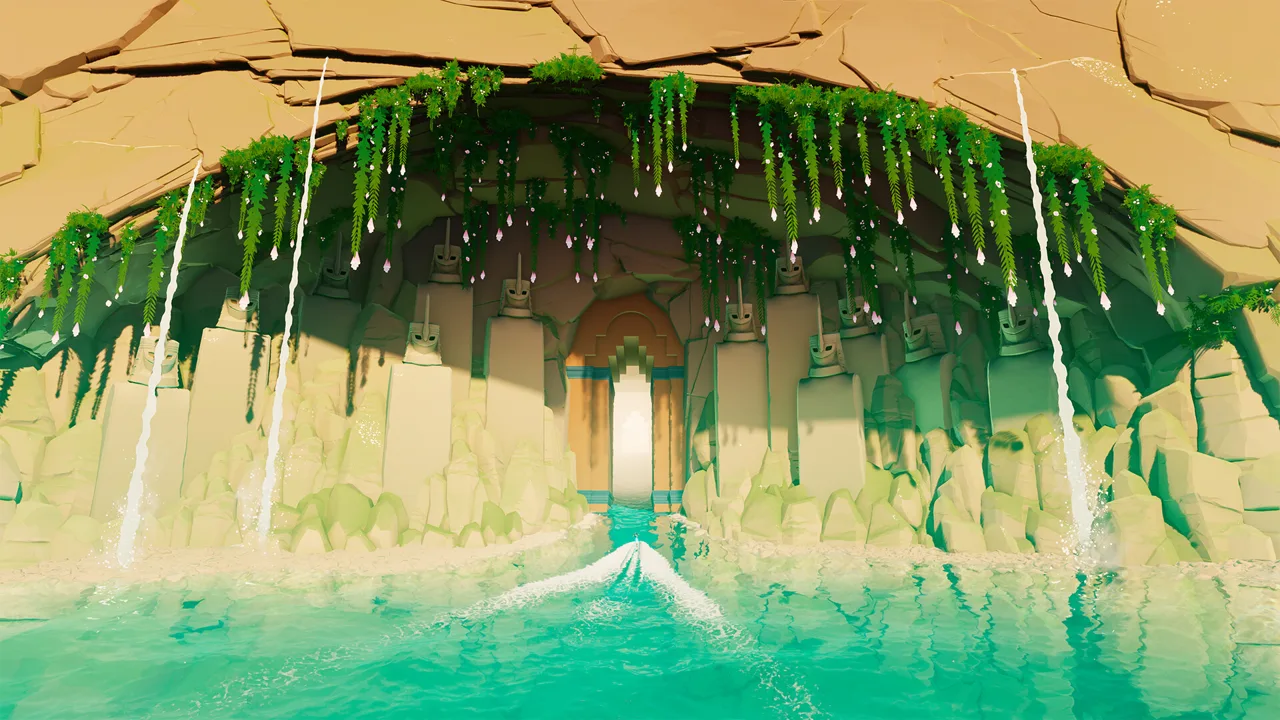 Image: Steam / Giant Squid
| Setting | Available values or support | What to adjust |
|---|---|---|
| Resolution scale | 50–200%, in 5% steps | Lower it to reduce rendering demand; compare fine detail while moving |
| Scale above 100% | Supersampling | Reduce it toward 100% when you need more performance |
| DLSS | Added in Patch 1.6 | Compare it with the existing scaling approach on compatible hardware |
| Graphics quality | Waves, fish, fog, shadows, materials | Adjust individually after choosing a preset |
Use 100% resolution scale as a comparison point, then lower it incrementally if the game struggles. Watch distant architecture, schools of fish, and the edges of the Wraith while turning the camera. Keep the reduction only if the extra performance is worth the change in clarity.
The existing resolution-scaling implementation uses TSR. That reconstruction helps explain why a lower internal resolution can retain substantial detail, but it does not make reduced resolution visually identical to native rendering.
On a compatible NVIDIA GPU, try DLSS after installing Patch 1.6. Compare image stability during surfing as well as still scenes. Avoid carrying an old percentage-based setup straight into the updated build without checking how it looks and runs.
Set a Sustainable Frame Rate
Sword of the Sea offers 30, 60, 120, and Unlocked FPS options, along with VSync. The 120 Hz frame-rate option was added in the August 29, 2025 update.
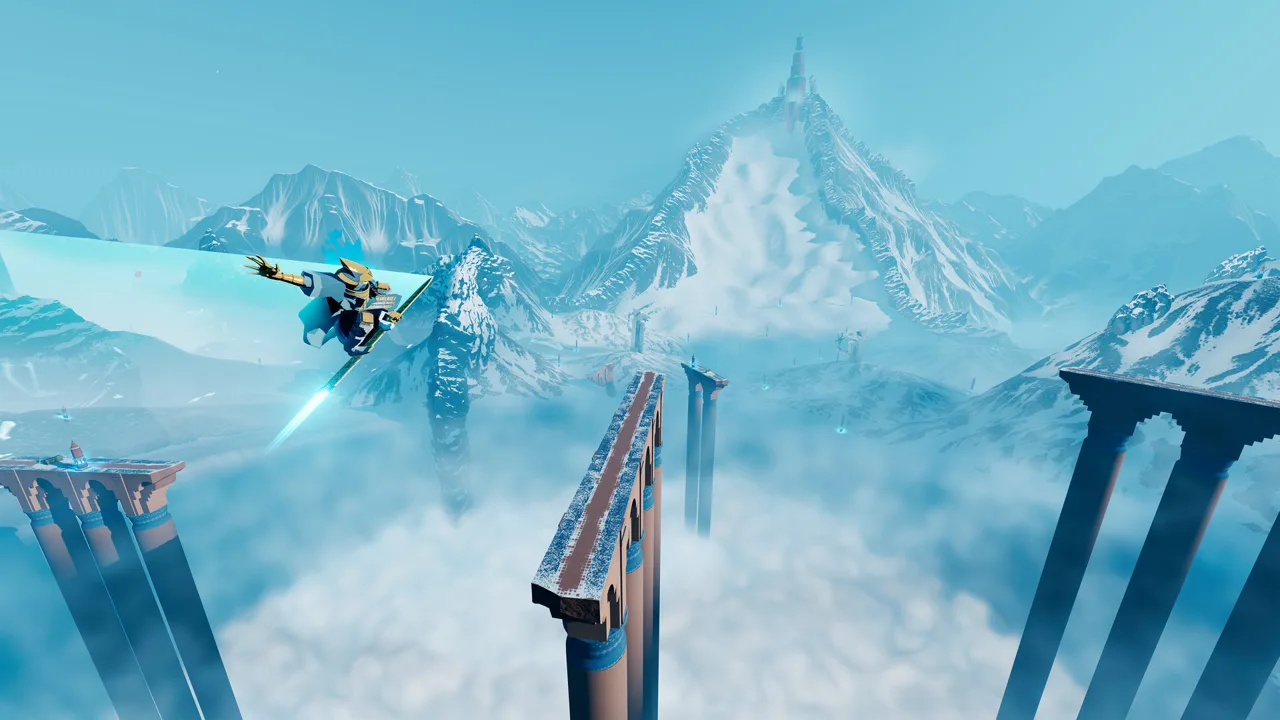 Image: Steam / Giant Squid
Choose a target your PC can maintain through active scenes:
- Select 60 FPS when pursuing that target, then adjust graphics and scaling until demanding stretches remain consistent.
- Try 120 FPS with a suitable display and enough performance headroom.
- Use Unlocked to compare performance while adjusting settings.
- Compare VSync on and off if screen tearing interrupts the moving landscape.
Pay attention to uneven motion, not just the highest FPS number. Average FPS describes overall throughput, while 1% low FPS helps reveal slower moments. Repeat the same route and camera movements when comparing settings so a quieter scene does not disguise a performance regression.
Configure Controllers, Haptics, and Camera Movement
The game supports controllers, controller remapping, sensitivity adjustments, and vertical camera inversion. Keyboard and mouse controls include mouse sensitivity and vertical inversion, but keyboard remapping is limited: movement can switch between WASD and the arrow keys.
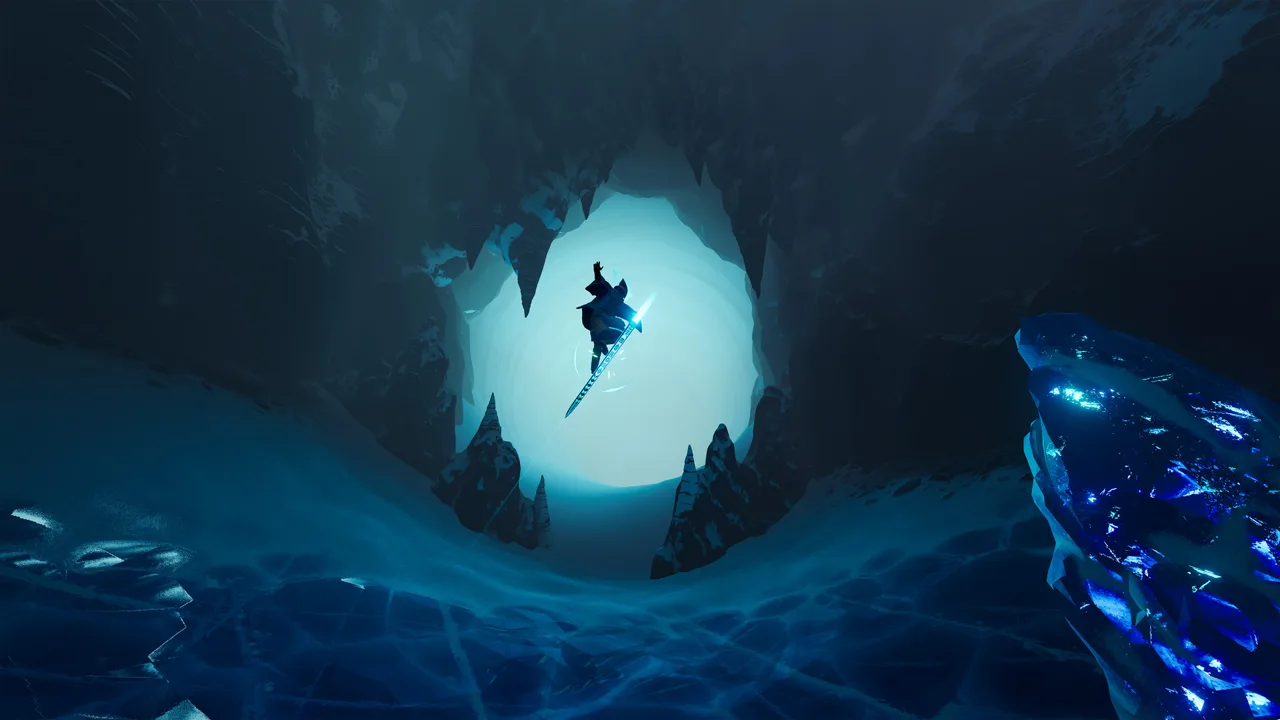 Image: Steam / Giant Squid
For full DualSense support on PC:
- Disable Steam Input for Sword of the Sea.
- Connect the DualSense with a cable for its detailed haptic feedback.
- Adjust the 0–100 haptic feedback slider to a comfortable strength.
The surface feedback is part of the surfing experience. Sand, water, and rooftops produce distinct sensations, so test the intensity across different terrain before settling on a value.
Adjust camera sensitivity while riding rather than standing still. Use a setting that lets you follow a landing and turn toward the next path without repeatedly overshooting.
Photo mode has its own Invert Camera (Horizontal), Invert Camera (Vertical), and Camera Sensitivity options, added September 19, 2025. Set those independently if your preferred screenshot controls differ from your gameplay camera controls.
Fix Display Selection and Missing Audio
Install the game updates before troubleshooting unavailable resolutions. The August 29, 2025 patch fixed inaccessible higher resolutions, and the September 19 update expanded resolution access and improved handling of multiple monitors.
The PC version supports windowed and borderless windowed play, 4K output, and 21:9 ultrawide presentation. Ultrawide support extends to both gameplay and cutscenes. There is no adjustable FOV setting.
For borderless play with Windows display scaling, set the executable’s High DPI scaling override to Application.
If music or effects seem missing after connecting a controller, check the Windows audio output device. Audio can be routed to the controller instead of your headset or speakers. Select your intended listening device, then adjust the game’s individual volume controls.
Disable background gameplay recording if you do not use it, and close unnecessary applications before comparing performance. Keep these changes separate from graphics adjustments so you can tell which change helped.
Check Your PC Against the Requirements
Use the hardware requirements to put your settings target in context. They describe hardware tiers without attaching a specific resolution or frame-rate guarantee.
| Component | Minimum | Recommended |
|---|---|---|
| Operating system | Windows 10 | Windows 11 |
| CPU | Intel Core i5-9400 or AMD Ryzen 5 2600; AVX2 required | Intel Core i5-12600K or AMD Ryzen 7 5700X |
| Memory | 12 GB RAM | 16 GB RAM |
| NVIDIA GPU | GeForce GTX 1070, 8GB | GeForce RTX 2080 Ti, 11GB |
| AMD GPU | Radeon RX 5600, 6GB | Radeon VII, 16GB |
| Intel GPU | Arc B570 | Arc B580 |
| Graphics API | DirectX 12 | DirectX 12 |
| Available storage | 15 GB | 15 GB |
Check AVX2 support if you are troubleshooting an older processor. Graphics adjustments cannot substitute for a required CPU instruction set.
Continue with
 Sword of the Sea Controller or Keyboard? Input GuideSword of the Sea controller or keyboard? Compare input options, movement remapping, and DualSense haptics, plus the Steam Input setting to change on PC.
More in Settings
Sword of the Sea DLSS Mod: Use Native Support in 1.6
Searching for a Sword of the Sea dlss mod? Patch 1.6 adds native DLSS. Learn what changed, how Ultra+ differs, and which older fixes to reconsider now.
Sword of the Sea Keeps Crashing? Fixes to Try on PC
Sword of the Sea keeps crashing? Try PC troubleshooting, check Intel Arc startup errors, and work through console fixes without deleting your save data.
Sword of the Sea Performance: PC Settings and Fixes
Improve Sword of the Sea performance with PC graphics settings, DLSS tips, Steam Deck updates, and a clear look at what Patch 1.6 changes for your setup.
Sword of the Sea Requirements: PC Specs and Settings
Sword of the Sea requirements explained: compare minimum and recommended PC specs, check AVX2 support, and see how Patch 1.6 changes graphics settings.
Join the community
Official channels for news, updates and player help: