
Sword of the Sea DLSS Mod: Use Native Support in 1.6
Searching for a Sword of the Sea dlss mod? Patch 1.6 adds native DLSS. Learn what changed, how Ultra+ differs, and which older fixes to reconsider now.
Jump to
Do You Need a Mod for DLSS?
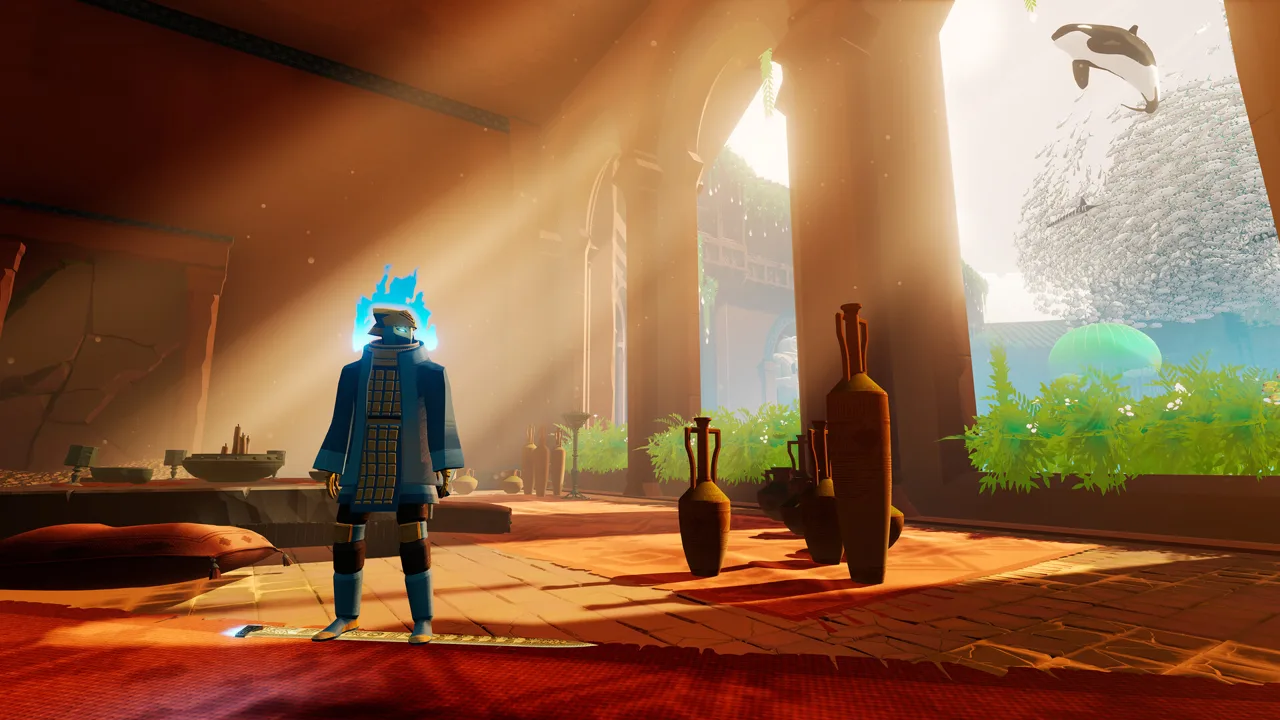
You can stop hunting for a Sword of the Sea dlss mod just to enable DLSS. Patch 1.6, released October 29, 2026, added native DLSS support, giving you a built-in option for tuning performance. Update the game and try that option before adding a graphics mod.
That update also introduced performance optimizations, additional graphics presets, and broader effects from graphics settings. Those changes matter when choosing settings for fast Hoversword movement across dunes and water: revisit your configuration after updating instead of carrying every launch-era workaround forward.
Several updates changed the settings worth checking:
| Update | Relevant changes |
|---|---|
| October 29, 2026 — Patch 1.6 | Added DLSS, performance optimizations, additional graphics presets, and expanded the impact of graphics settings |
| September 19, 2025 | Expanded accessible resolutions and improved handling of multiple monitors |
| August 29, 2025 | Added a 120hz framerate option and fixed an issue preventing access to higher resolutions |
Start with the updated game's graphics options. Recheck your resolution, graphics preset, and frame rate setting before deciding whether you need extra tools.
Official page: Sword of the Sea (swordoftheseagame.com)
What Ultra+ Adds to Graphics Settings
Ultra+ is a separate graphics enhancement and performance mod with controls for lighting, reflections, denoising, and post-processing. Its purpose extends beyond enabling an upscaling option.
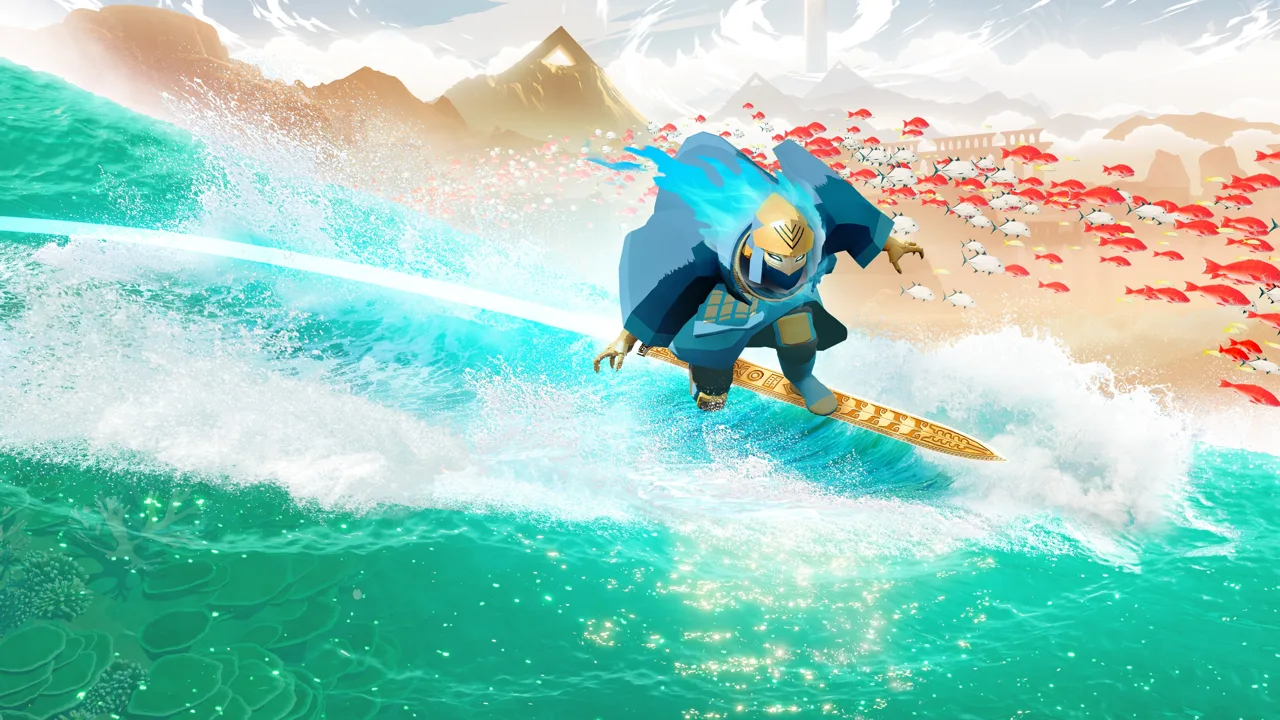 Image: PlayStation Store
For example, DLSSAutoExposure controls DLSS exposure behavior. Keep that adjustment separate from the game's native DLSS selection when tuning the image.
The mod's controls include:
- LightingQuality: Offers game, performance, standard, high, epic, and insane settings. Start with standard, its recommended default, before increasing lighting detail.
- LightingDownsampleFactorOverride: Changes lighting downsampling and has a substantial effect on performance. Lower downsampling resolves smaller details and reduces flickering.
- ReflectionQuality: Expands the surfaces included in reflections at higher settings, with a potential increase in noise.
- LODBias: Forces higher-resolution textures. Start with minuspoint5, the safest listed adjustment; stronger values can introduce visible patterns.
- ChromaticAberration: Can be disabled to reduce the blur associated with that effect.
Denoiser offers game, none, temporal, and rayreconstruction options for global illumination and reflections. Temporal denoising trades additional temporal information for reduced noise, with ghosting as a possible drawback. Enabling ray reconstruction also turns depth of field off. LightingUpdateSpeed adjusts how quickly global illumination updates, while BetterReflectionSDFs increases mesh resolution in global software Lumen space, particularly affecting reflections.
Keep changes focused. Adjust lighting quality first, inspect the result, then move to reflections or texture detail. Changing those controls together makes it harder to identify which adjustment improved the image or hurt performance.
Ultra+ also includes bloom, film grain, depth-of-field, motion-blur, and vignette controls. Use those to shape presentation after settling on a performance level you can maintain.
Revisit Older Scaling and Stutter Workarounds
The game's August 2025 launch build lacked the DLSS option now included in Patch 1.6. Performance configurations built around that earlier version need another look.
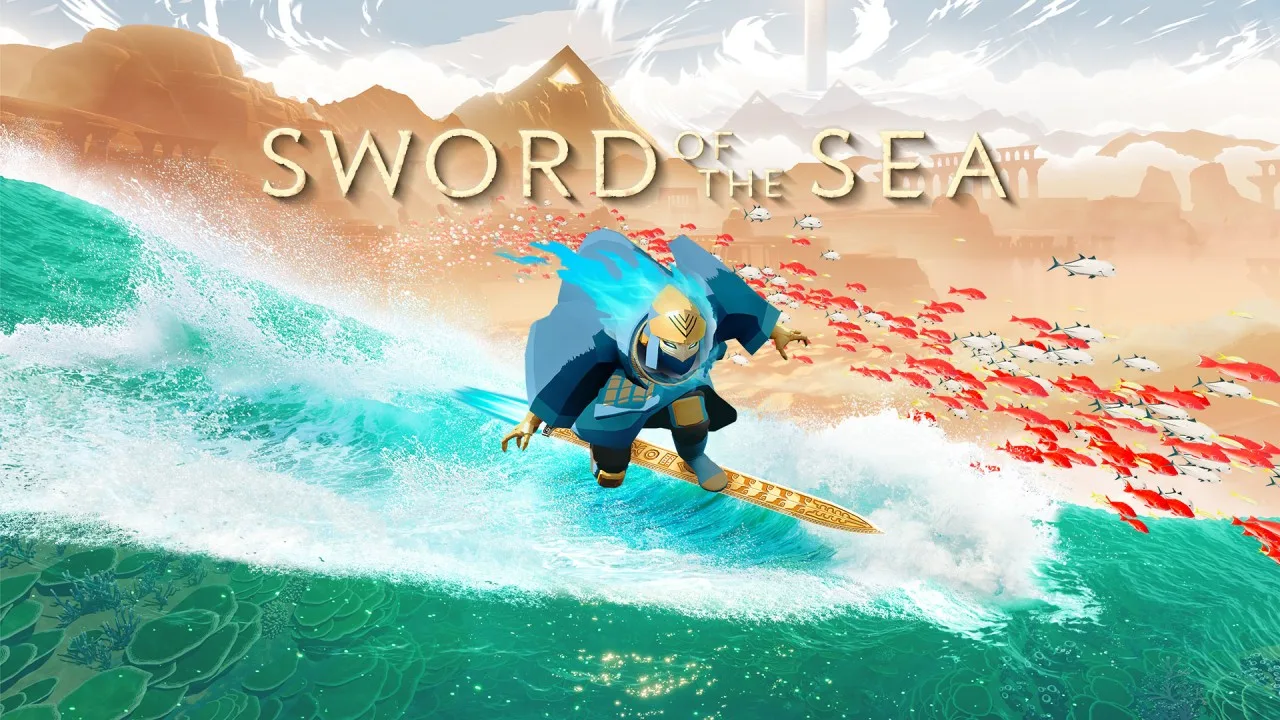 Image: Nintendo
NVIDIA Image Scaling, NVIDIA Smooth Motion, and Lossless Scaling served as alternative ways to upscale the image or generate additional frames. Evaluate those tools separately from native DLSS so you can judge what each change contributes.
Prioritize consistent motion over the displayed FPS number. Lossless Scaling could raise output frame rates while stuttering remained, and Smooth Motion could introduce visible artifacts during lower-frame-rate sections. Inspect water, moving scenery, and the character's silhouette while surfing when comparing configurations.
Revisit resolution workarounds, too. Earlier configurations used an executable DPI override to address resolution problems, but subsequent updates fixed inaccessible resolutions and improved multiple-monitor handling. Try the updated resolution controls before applying that older workaround.
For a useful comparison, repeat the same stretch of gameplay after each adjustment. Pay attention to interruptions during turns and transitions into water, alongside image clarity. Keep the setting changes that improve those moments on your system.
Continue with
 Sword of the Sea Keeps Crashing? Fixes to Try on PCSword of the Sea keeps crashing? Try PC troubleshooting, check Intel Arc startup errors, and work through console fixes without deleting your save data.
More in Settings
Sword of the Sea Controller or Keyboard? Input Guide
Sword of the Sea controller or keyboard? Compare input options, movement remapping, and DualSense haptics, plus the Steam Input setting to change on PC.
Sword of the Sea Performance: PC Settings and Fixes
Improve Sword of the Sea performance with PC graphics settings, DLSS tips, Steam Deck updates, and a clear look at what Patch 1.6 changes for your setup.
Sword of the Sea Requirements: PC Specs and Settings
Sword of the Sea requirements explained: compare minimum and recommended PC specs, check AVX2 support, and see how Patch 1.6 changes graphics settings.
Sword of the Sea Settings Guide: Smoother PC Surfing
Use this Sword of the Sea settings guide to tune graphics, improve frame pacing, set up DualSense haptics, and adjust audio after the Patch 1.6 update.
Join the community
Official channels for news, updates and player help: