
Sword of the Sea Steam Deck: Patch 1.6 and Settings
Sword of the Sea Steam Deck support changed with Patch 1.6. Explore compatibility, past FPS issues, graphics options, and controller tips before playing.
Jump to
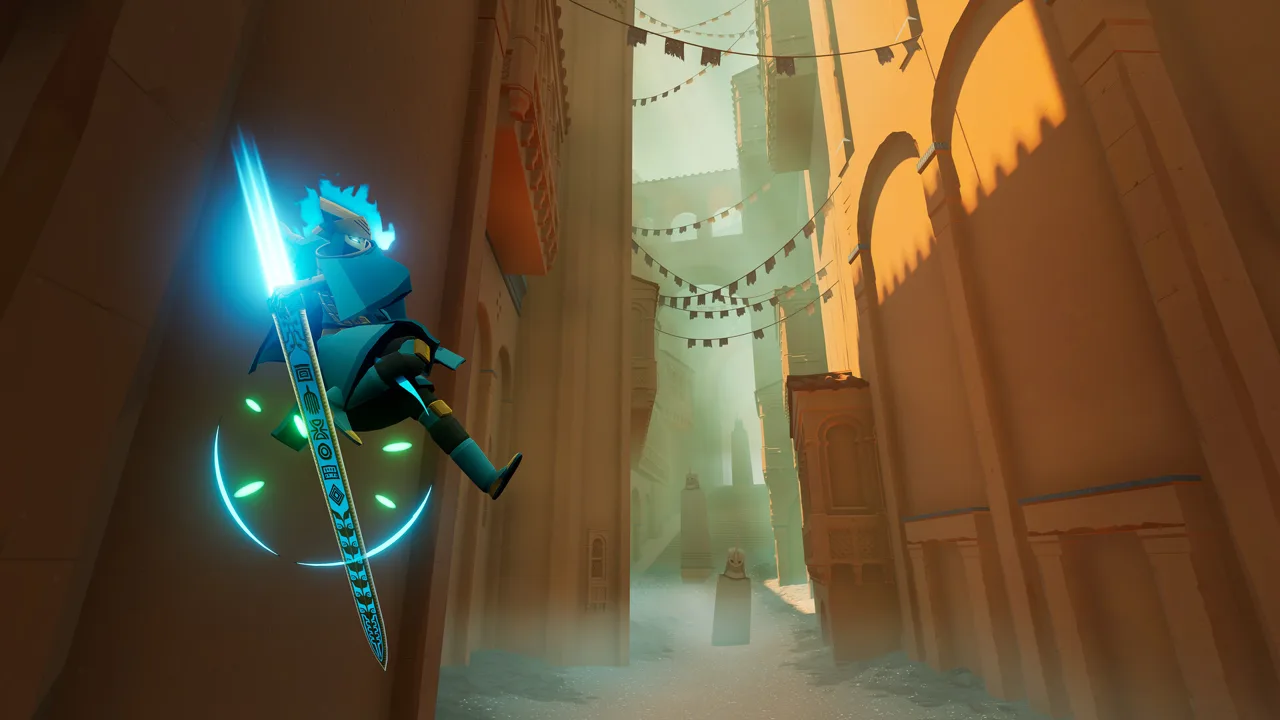
Does Sword of the Sea Work on Steam Deck?
The Sword of the Sea Steam Deck experience changed with Patch 1.6 on October 29, 2026. This update adds Steam Deck Verified status and performance optimizations, making the version you install especially important. Earlier builds struggled on both LCD and OLED models, even with substantial cuts to image quality.
Verified status marks a meaningful change from the game’s earlier Unsupported designation for graphics performance. It also changes how you should approach older advice: settings designed to squeeze playable moments out of the launch build belong to that build.
Update the game before adjusting graphics options or following compatibility workarounds. The current release includes changes aimed directly at performance and graphics scalability.
What Patch 1.6 Changes
Patch 1.6 brings several improvements relevant to handheld play:
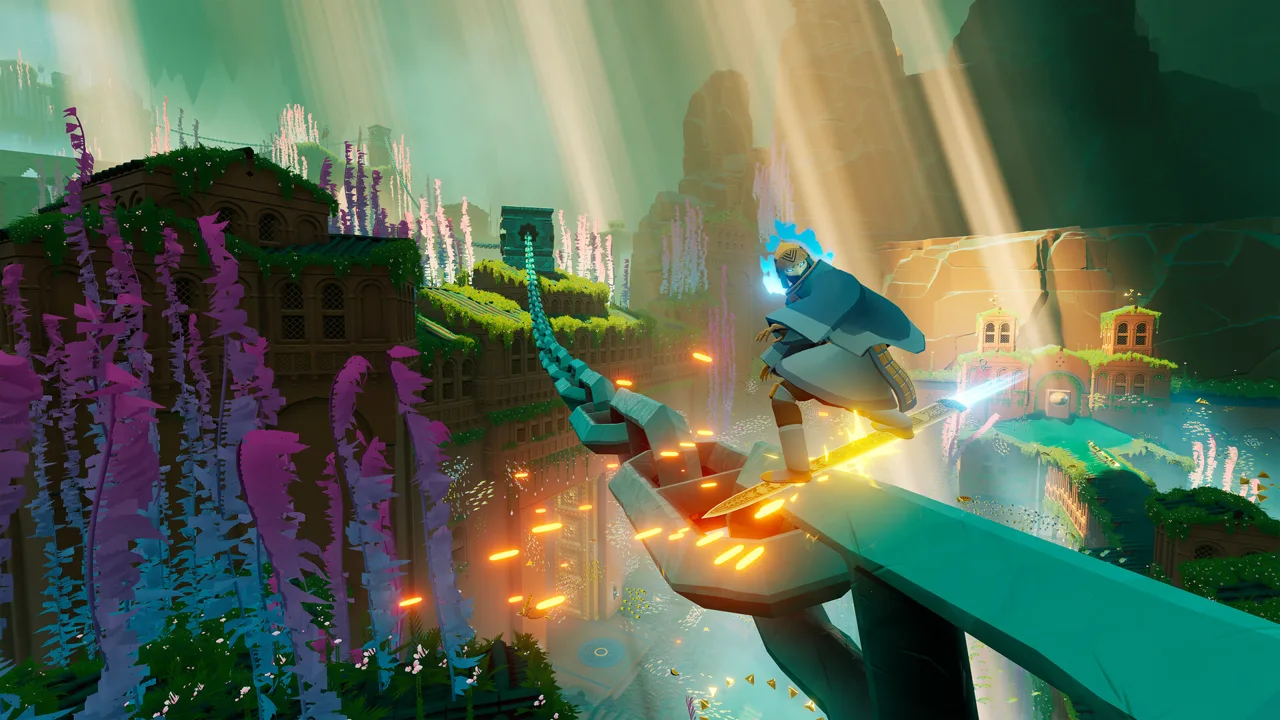 Image: Steam / Giant Squid
- Steam Deck Verified status.
- Performance improvements and optimizations.
- Additional graphics presets.
- Graphics settings with a greater effect on performance and image quality.
- Haptics improvements.
- Level-of-detail improvements for fish, kelp, and chains.
The expanded graphics settings matter in an adventure built around moving landscapes and large environmental transformations. You ride the Hoversword across rolling dunes, launch from ramps, and restore water to barren areas. Smooth movement helps those sequences feel fluid and makes steering through smaller spaces easier.
Start with the updated presets before recreating an old custom configuration. Patch 1.6 changes how much the graphics options affect the game, so an earlier combination of Low settings and reduced resolution scaling should not automatically become your starting point.
Earlier Performance on LCD and OLED Models
Earlier builds had trouble maintaining 30 FPS on either Deck model. The OLED model did not deliver enough extra performance to overcome those problems.
 Image: Steam / Giant Squid
These figures describe earlier configurations, rather than performance targets for Patch 1.6:
| Earlier configuration | Performance |
|---|---|
| Steam Deck LCD, Low settings, 65% render scale | Reached 30 FPS in some areas but struggled to sustain playable performance |
| Steam Deck OLED, 720p, Low settings, 65% render scale | Dropped into the 20s and teens |
| Steam Deck, Low settings, 50% resolution scaling | Around 40 FPS in one configuration, with substantial image degradation and occasional crashes |
Other earlier configurations hovered around 15–17 FPS or struggled even at resolutions approaching 480p. That spread matters: lowering resolution did not consistently solve the problem.
Keep those older results in context when deciding whether to reinstall. They explain the game’s poor handheld reputation, but they should not be presented as benchmarks for the updated build.
Graphics Settings: Where to Start
Use the presets added in Patch 1.6 as your baseline, then adjust image quality around the movement you actually play.
 Image: swordoftheseagame.com
- Test while surfing. Ride across an area and turn the camera instead of judging performance from a stationary scene.
- Include environmental transformations. Restoring the ocean is central to the adventure; judge your settings through those sequences, too.
- Reduce settings before making extreme resolution cuts. Earlier 50% scaling configurations sacrificed considerable visual clarity.
- Compare responsiveness and readability together. A higher frame rate loses some value if the scenery becomes difficult to read while moving quickly.
Avoid treating a brief FPS peak as a sustained result. Earlier builds could touch 30 FPS and immediately fall below it, which disrupted the rhythm of carving, jumping, and landing.
Controller Tips and Streaming
The game supports full controller input, controller remapping, sensitivity adjustment, and inverted vertical camera controls. Adjust sensitivity around comfortable turns while riding the Hoversword, especially when lining up smaller ramps.
The instruction to disable Steam Input applies specifically to full DualSense support. Keep that separate from configuring the Deck’s built-in controls.
Streaming from a more powerful PC is another way to play on the handheld. It shifts the demanding rendering work to the host system, though input latency remains a consideration during fast traversal. Use the Sword of the Sea Steam page to install the game on the PC you plan to stream from.
Continue with
 Sword of the Sea PS5: Price, Gameplay, and PlaytimeSword of the Sea PS5 brings fast Hoversword surfing and a short, scenic adventure. Explore pricing, PS5 Pro support, playtime, and New Game Plus features.
Continue exploring
Sword of the Sea Requirements: PC Specs and Settings
Sword of the Sea requirements explained: compare minimum and recommended PC specs, check AVX2 support, and see how Patch 1.6 changes graphics settings.

Sword of the Sea Settings Guide: Smoother PC Surfing
Use this Sword of the Sea settings guide to tune graphics, improve frame pacing, set up DualSense haptics, and adjust audio after the Patch 1.6 update.
Join the community
Official channels for news, updates and player help: