
Sword of the Sea Keeps Crashing? Fixes to Try on PC
Sword of the Sea keeps crashing? Try PC troubleshooting, check Intel Arc startup errors, and work through console fixes without deleting your save data.
Jump to
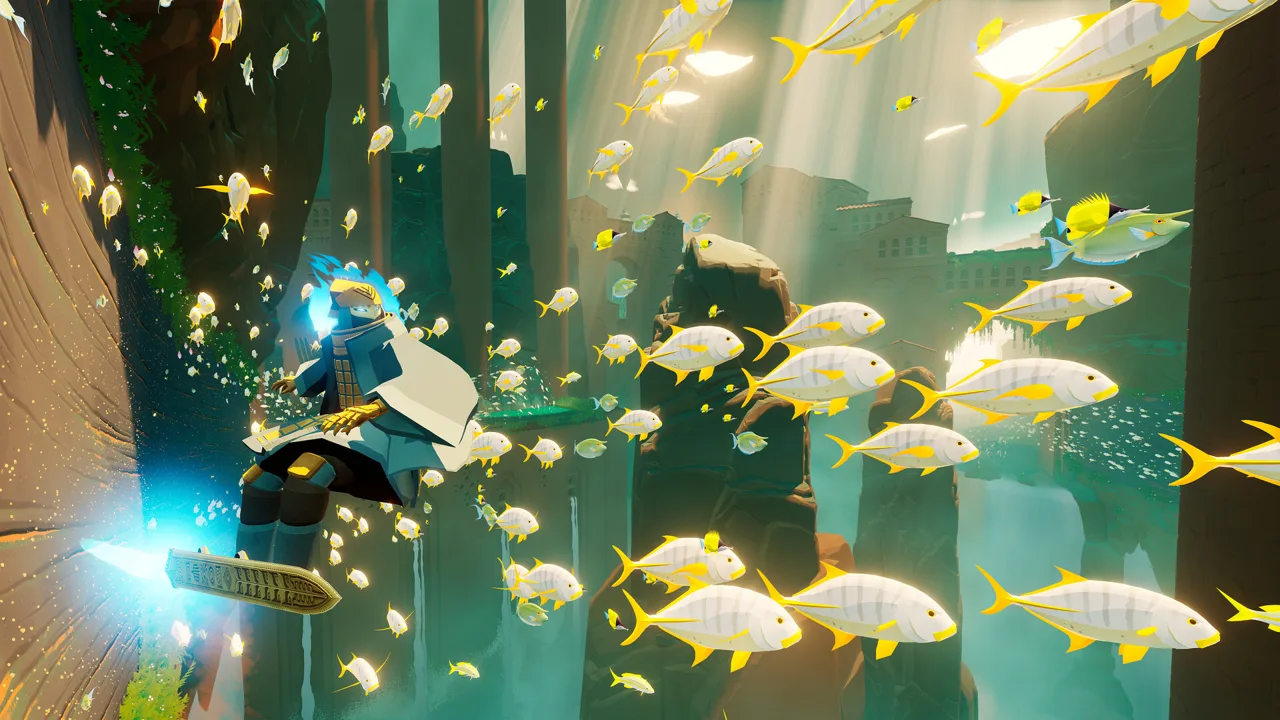
Start With a Restart and Game Updates
If Sword of the Sea keeps crashing, restart your system and install pending game updates before changing graphics settings. A crash before the main menu needs a different troubleshooting path from a freeze halfway through surfing. Note exactly when the failure happens so you can test the same situation after each change.
Fully restart your PC or console, then reopen the game. On PC, check for Windows updates and restart afterward if prompted.
The October 29, 2026 Patch 1.6 gives PC players several relevant changes:
- Performance improvements and optimizations.
- Additional graphics presets and settings with a greater effect on rendering.
- Added DLSS support.
Install that update before working through older graphics advice. Change one setting at a time afterward, then return to the situation that triggered the crash.
Official page: Sword of the Sea (swordoftheseagame.com)
Check the PC Requirements Before Adjusting Settings
Start with the hardware requirements, especially if the game closes immediately or never reaches its menus.
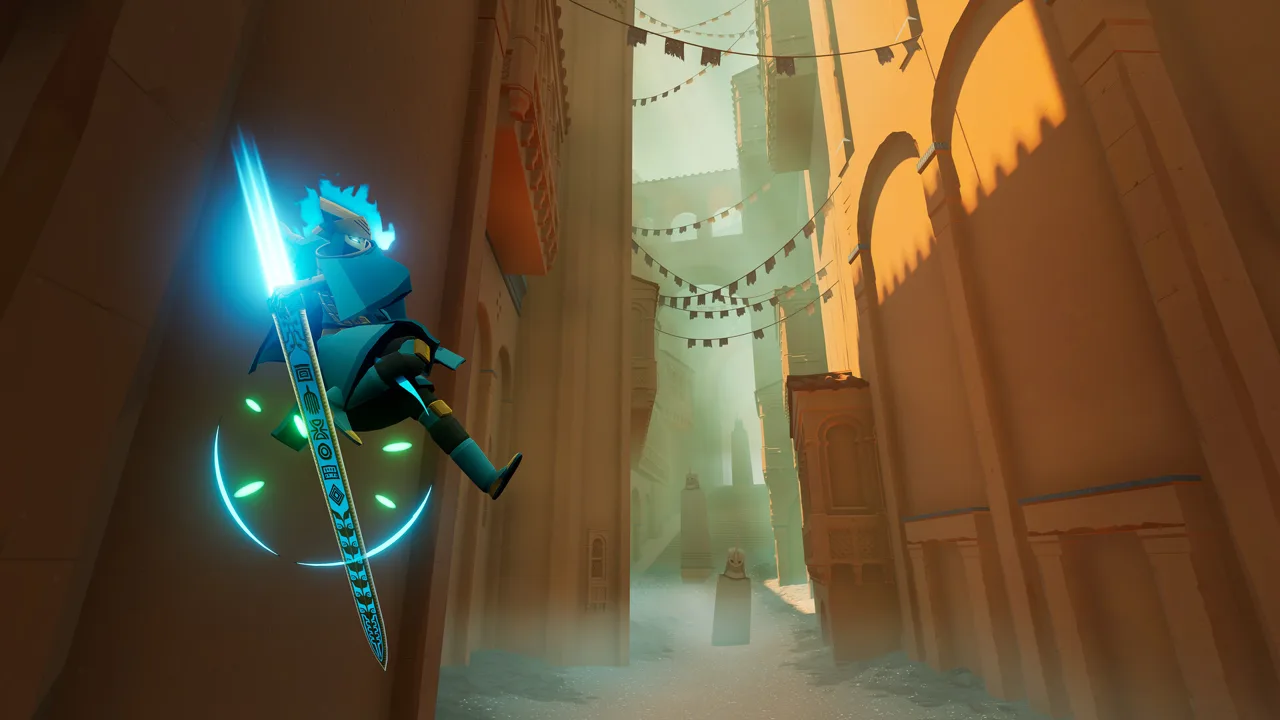 Image: Steam / Giant Squid
| Component | Minimum | Recommended |
|---|---|---|
| Operating system | Windows 10 | Windows 11 |
| Processor | Intel Core i5-9400 or AMD Ryzen 5 2600 | Intel Core i5-12600K or AMD Ryzen 7 5700X |
| Memory | 12 GB RAM | 16 GB RAM |
| Graphics | NVIDIA GeForce GTX 1070, 8GB; AMD Radeon RX 5600, 6GB; or Intel Arc B570 | NVIDIA GeForce RTX 2080 Ti, 11GB; AMD Radeon VII, 16GB; or Intel Arc B580 |
| DirectX | Version 12 | Version 12 |
| Available storage | 15 GB | 15 GB |
A 64-bit processor and operating system are required, and the CPU must support the AVX2 instruction set. Lowering the resolution cannot compensate for a missing CPU requirement.
Check available storage as well as total drive capacity. If you need to free space, review the files selected by Windows storage cleanup before removing them.
Troubleshoot PC Startup and Intel Arc Errors
A black screen followed by “The UE-Surfer Game has crashed and will close: Fatal Error!” is a useful detail to capture. Write down the complete message rather than reporting only that the game will not open.
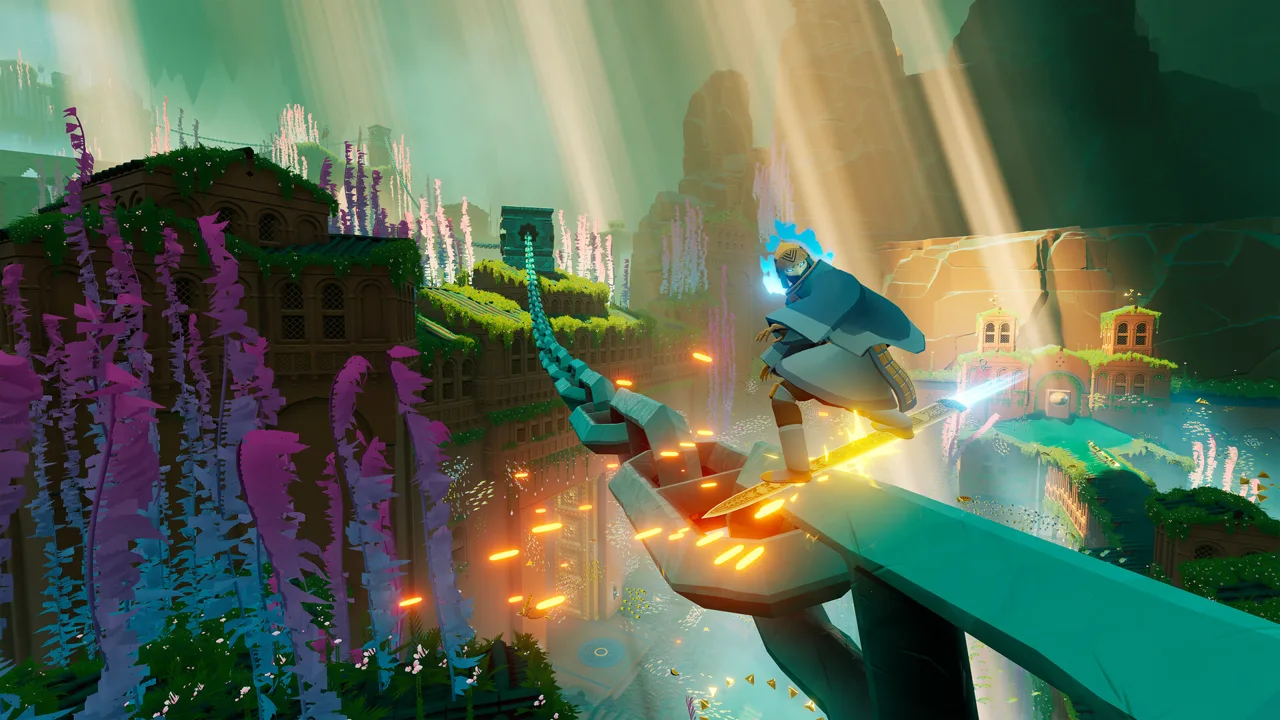 Image: Steam / Giant Squid
Intel Arc startup crashes
The August 29 and September 19, 2025 updates identified startup crashes affecting some Intel Arc GPUs. Launch failures also occurred on configurations using the Arc B580 and A770.
For an Arc startup error, install pending game updates and update the Intel graphics driver before working through unrelated display changes. Keep the GPU model and driver version handy if the failure continues.
The hardware requirements include Intel Arc B570 at minimum and B580 at recommended specifications. Focus troubleshooting on your particular configuration and error rather than assuming every Arc card has the same problem.
Test launcher permissions
For a permissions test on PC:
- Close the launcher.
- Right-click its shortcut.
- Select Run as administrator.
- Launch the game through the launcher.
Test whether this changes the startup behavior before making administrator access permanent. Keep compatibility changes separate from graphics changes so you can identify which adjustment affects the result.
Reduce Load for Crashes During Gameplay
If the game reaches the menu but freezes or exits during play, test a lighter workload. Use the same area or action for each attempt.
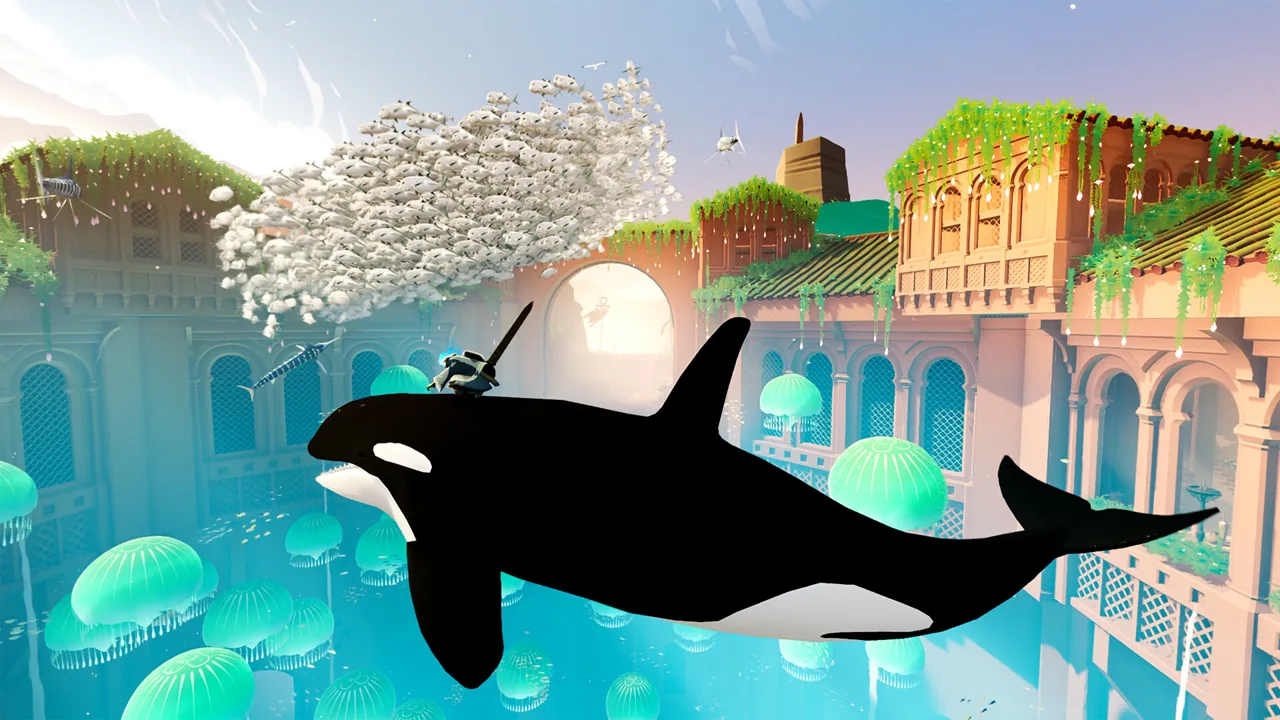 Image: Steam / Giant Squid
Close demanding apps you recognize
Open Task Manager > Processes and review CPU, memory, and GPU usage. Close unused applications such as video editors or other demanding programs before relaunching the game.
Use End task only for applications you recognize and intend to close. A process consuming resources is not, by itself, a reason to terminate it.
Lower resolution and frame-rate demands
Try these changes individually:
- Lower the resolution from 4K to 1080p, or from 1080p to 720p.
- Test a lower frame-rate option instead of the 120 Hz option.
- Select a lower graphics preset.
- Temporarily turn off Xbox Game Bar and background capture.
Use the expanded graphics presets introduced in Patch 1.6 to test a lighter configuration. Once the game runs reliably through the troublesome section, raise settings individually.
Update before troubleshooting monitor behavior
The September 19, 2025 update expanded accessible resolutions and improved handling of multiple monitors. Install game updates before trying to work around a missing resolution.
Keep display troubleshooting focused on the symptom. If the problem is an unavailable resolution, test that setting; if the game crashes during an effects-heavy scene, start with graphics load.
Handle Switch 2 and Xbox Launch Problems Separately
Console troubleshooting depends on the edition you are playing. Keep Switch 2 menu instructions separate from Xbox Series X|S troubleshooting.
Switch 2: distinguish an unlock message from a crash
“You Cannot Play This Software Yet” calls for a release-time check before reinstalling. The Switch 2 release date is October 29, 2026; check availability for your account and region if a preload remains locked.
For a game that opens and then freezes or returns to HOME, work through this sequence:
- Restart the console.
- Update the system. Open System Settings > System > System Update.
- Install any available game update.
- Check the download. Open System Settings > Data Management > Manage Software, select the game, and choose Check for Corrupted Data.
- Redownload the software if the corruption check prompts you to do so.
If trouble continues with a card installation, test the game in internal system memory. Compare the result before replacing or formatting the card.
Keep software troubleshooting separate from save-data management. Do not delete saves or factory-reset the console as a routine crash fix. Formatting storage can permanently remove information, so back up screenshots and videos before considering that step.
Xbox Series X|S: capture the exact failure
Identify whether the game refuses to launch, freezes during play, or closes to the console interface. Also note whether the console itself remains responsive and whether other games have the same problem.
Use the exact error code when seeking Xbox troubleshooting guidance. Include your console model, game update status, and the point where the failure occurs.
Give Support a Reproducible Crash Report
When the same failure survives these checks, send a report that lets support follow your steps:
- Platform and edition: PC, Switch 2, or Xbox Series X|S.
- Failure point: startup, loading, a specific area, or a particular action.
- Exact symptom: error text, black screen, frozen image, or return to the desktop or console interface.
- PC configuration: CPU, GPU, RAM, Windows version, and graphics driver version.
- Console details: region, preload status, and installation location.
- Troubleshooting results: changes tried, their individual results, and whether other games are affected.
Describe repeatable failures precisely. “Closes every time I enter this area” gives support more to work with than “randomly crashes,” especially when paired with the error message and the settings used.
Continue with
 Sword of the Sea Performance: PC Settings and FixesImprove Sword of the Sea performance with PC graphics settings, DLSS tips, Steam Deck updates, and a clear look at what Patch 1.6 changes for your setup.
More in Settings
Sword of the Sea Controller or Keyboard? Input Guide
Sword of the Sea controller or keyboard? Compare input options, movement remapping, and DualSense haptics, plus the Steam Input setting to change on PC.
Sword of the Sea DLSS Mod: Use Native Support in 1.6
Searching for a Sword of the Sea dlss mod? Patch 1.6 adds native DLSS. Learn what changed, how Ultra+ differs, and which older fixes to reconsider now.
Sword of the Sea Requirements: PC Specs and Settings
Sword of the Sea requirements explained: compare minimum and recommended PC specs, check AVX2 support, and see how Patch 1.6 changes graphics settings.
Sword of the Sea Settings Guide: Smoother PC Surfing
Use this Sword of the Sea settings guide to tune graphics, improve frame pacing, set up DualSense haptics, and adjust audio after the Patch 1.6 update.
Join the community
Official channels for news, updates and player help: