
Sword of the Sea HDR: PC Support and Graphics Guide
Sword of the Sea HDR explained for PC players, with display support, Patch 1.6 graphics changes, resolution scaling, and fixes for missing resolutions.
Jump to
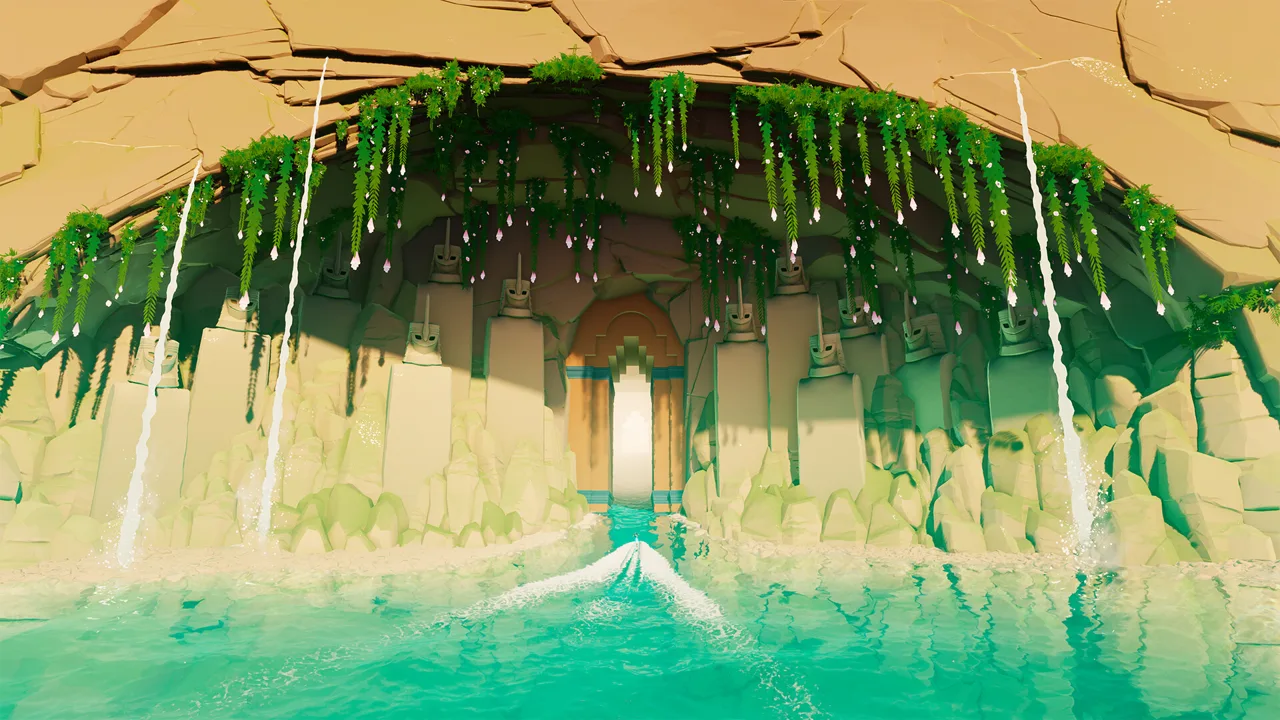
Does Sword of the Sea Support HDR on PC?
If you’re looking for Sword of the Sea HDR settings on PC, the game uses SDR and has no native HDR option. That matters when you’re adjusting its bright dunes, glowing effects, and restored oceans on an HDR display. Focus on the available resolution and graphics controls to improve the image.
An HDR-capable monitor does not automatically give a game native HDR output. Likewise, 4K resolution and high frame rates describe different parts of the picture: resolution controls detail, while frame rate affects motion.
The PC version supports 4K, ultrawide gameplay, and several frame-rate limits. Those features can improve how the adventure looks and feels, but they do not enable HDR.
At 21:9, both gameplay and cutscenes expand the horizontal view, with a field of view of 116°. There is no separate field-of-view adjustment. Windowed and borderless windowed modes are supported, and VSync is available. The image settings also include temporal anti-aliasing, while anisotropic filtering uses 8x by default. These controls concern framing, edges, texture clarity, and presentation; changing them does not add native high-dynamic-range output to the PC version.
Official page: Sword of the Sea (swordoftheseagame.com)
What Patch 1.6 Changes for Graphics Settings
Patch 1.6, released October 29, 2026, added DLSS support, performance optimizations, additional graphics presets, and a greater performance impact from graphics settings.
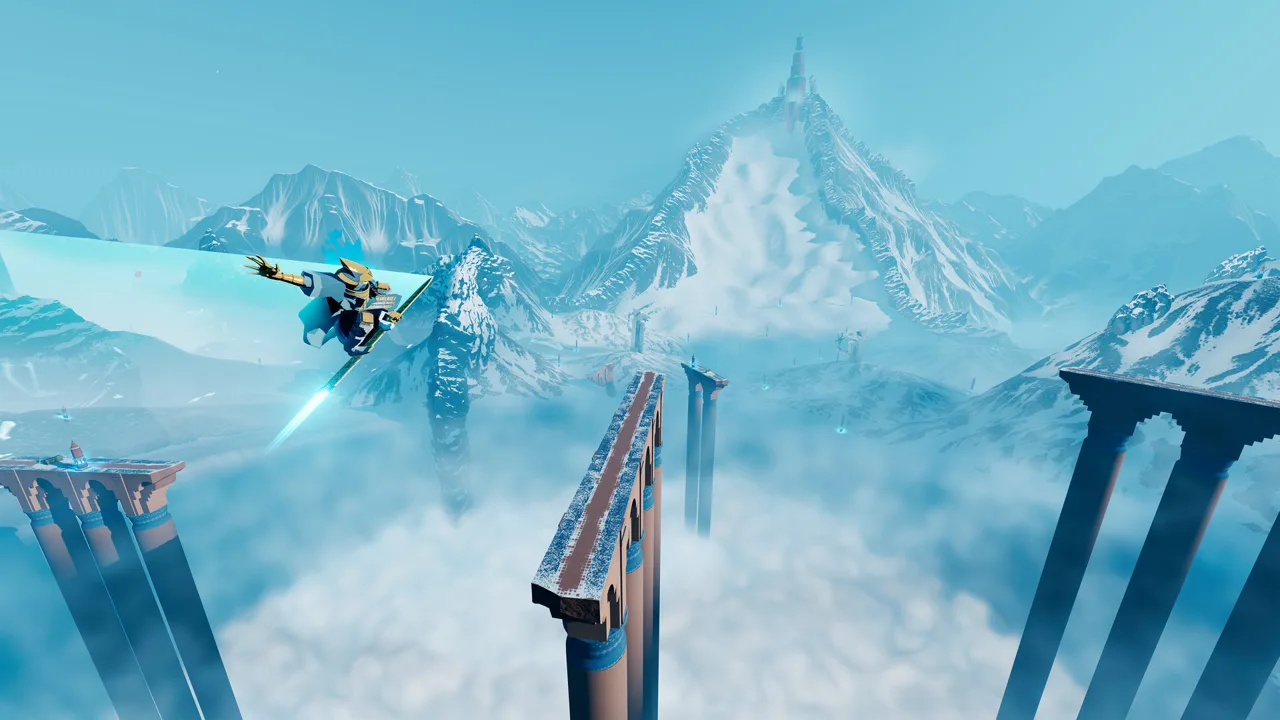 Image: Steam / Giant Squid
That makes older launch-era settings advice less useful. In particular, instructions built around the absence of DLSS no longer apply to this build. Reports that switching between quality presets barely changes performance also predate these adjustments.
Use the updated graphics controls when tuning your setup:
- Compare the current presets. Patch 1.6 expanded their effect, so revisit them before relying on an older configuration.
- Try DLSS when available on your setup. Compare image clarity and motion against your existing resolution-scaling configuration.
- Check resolution scaling before raising it. Values above 100% use supersampling, increasing rendering resolution rather than enabling HDR.
- Choose an appropriate frame-rate limit. The PC options include 30, 60, 120, and Unlocked FPS.
Keep display output and performance tuning separate. DLSS changes how the image is rendered and reconstructed; it is not an HDR switch.
The same patch improved level-of-detail handling for fish, kelp, and chains, alongside haptics improvements and Steam Deck Verified status. Photo mode received changes to autofocus behavior and maximum focal distance, and its dirt mask now also applies to Wanderer. Photo mode is disabled during screen fades, and its exit button is disabled while holding the Hide UI button before shooting. The 120hz framerate option arrived earlier, in the August 29, 2025 update, which also expanded photo mode’s camera movement range.
Fix Missing Resolutions Before Tuning Image Quality
If the game will not offer your display’s resolution, address that problem before compensating with resolution scaling.
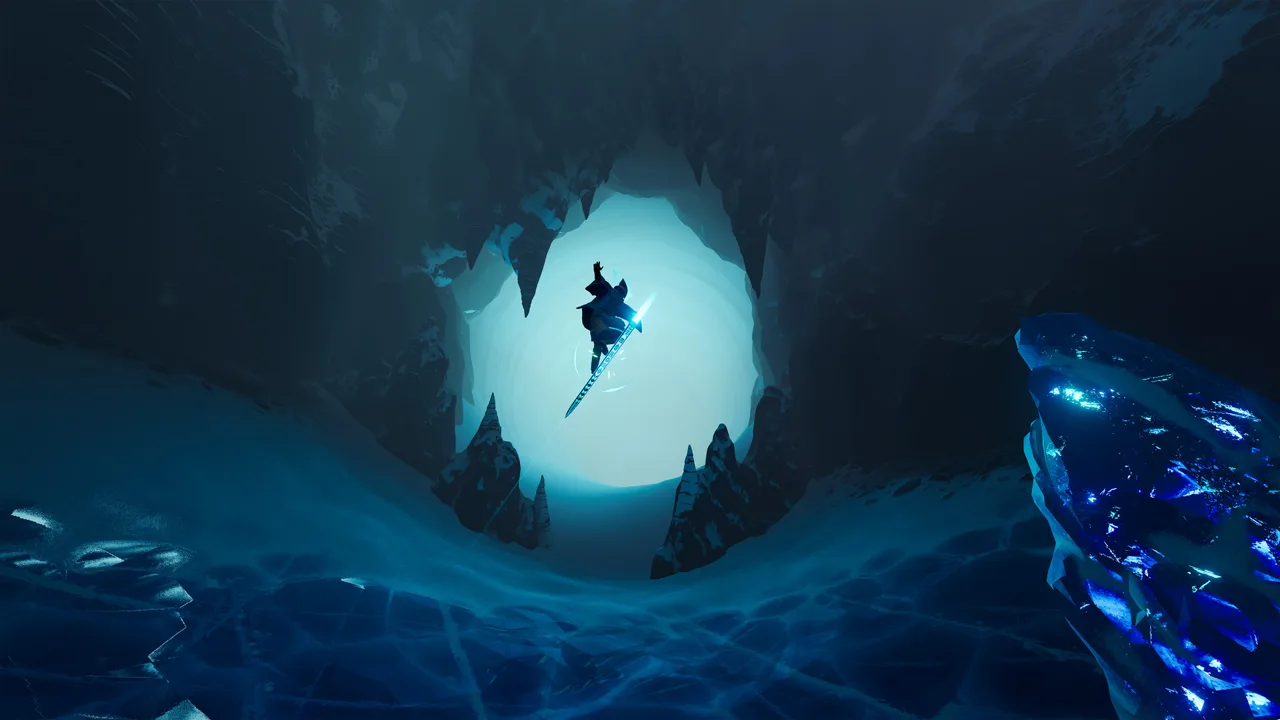 Image: Steam / Giant Squid
The August 29, 2025 update fixed an issue that could hide higher resolutions in the Options/Graphics screen. The September 19, 2025 update further improved resolution selection and handling of multiple monitors. Update the game before following launch-era workarounds.
For borderless play with Windows display scaling enabled, set the game executable’s High DPI scaling override to Application. This targets the scaling behavior associated with incorrect resolution handling.
Once your intended output resolution is available, adjust rendering quality separately. Resolution scaling spans 50–200% in 5% increments; pushing beyond 100% adds supersampling. Lower the scale if you need to reduce rendering load, then compare fine details and moving edges before making another change.
For hardware context, the minimum PC requirements include Windows 10, 12 GB RAM, and an Intel Core i5-9400 or AMD Ryzen 5 2600, with AVX2 support required. Minimum graphics options include the NVIDIA GeForce GTX 1070, 8GB, AMD Radeon RX 5600, 6GB, or Intel Arc B570. The recommended requirements move to Windows 11, 16 GB RAM, and an Intel Core i5-12600K or AMD Ryzen 7 5700X. Both requirement levels call for DirectX 12 and 15 GB of available storage.
Continue with
 Sword of the Sea Keeps Crashing? Fixes to Try on PCSword of the Sea keeps crashing? Try PC troubleshooting, check Intel Arc startup errors, and work through console fixes without deleting your save data.
More in Settings
Sword of the Sea Controller or Keyboard? Input Guide
Sword of the Sea controller or keyboard? Compare input options, movement remapping, and DualSense haptics, plus the Steam Input setting to change on PC.
Sword of the Sea DLSS Mod: Use Native Support in 1.6
Searching for a Sword of the Sea dlss mod? Patch 1.6 adds native DLSS. Learn what changed, how Ultra+ differs, and which older fixes to reconsider now.
Sword of the Sea Performance: PC Settings and Fixes
Improve Sword of the Sea performance with PC graphics settings, DLSS tips, Steam Deck updates, and a clear look at what Patch 1.6 changes for your setup.
Sword of the Sea Requirements: PC Specs and Settings
Sword of the Sea requirements explained: compare minimum and recommended PC specs, check AVX2 support, and see how Patch 1.6 changes graphics settings.
Join the community
Official channels for news, updates and player help: